Power Tools for
Google NotebookLM
Batch add from YouTube, Google, Reddit & 20+ sites.
Merge sources, translate, export — all in one click.
Trusted by 10,000+ researchers
Everything You Need to Research Faster
Automate the tedious parts of knowledge gathering. Focus on insights.
Batch Add from 25+ Sites
Add multiple sources at once from YouTube search, Google Search, Reddit, PubMed, and more. No more one-by-one copy-pasting.
Smart Merge
Combine 20, 50, or even 100+ sources into a single text document. Instead of filling all 300 source slots, use just 1.
YouTube Transcripts
Extract full transcripts with [MM:SS] timestamps every 3 minutes. Works with auto-generated and manual captions in 1000+ languages.
Translate to Native Language
Automatically translate foreign sources into your native language before adding them to NotebookLM. Powered by Gemini AI, supporting any language.
Export Full Notebooks
Export entire notebooks as JSON with full source content — not just summaries. Separate files per notebook or merged into one.
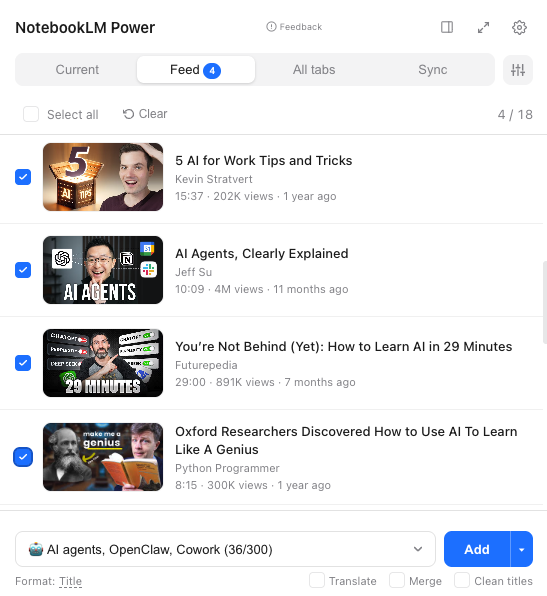
Feed — Add from Any Page
Open the extension on YouTube search, Google Search, Reddit, or PubMed — see all results in the Feed tab to filter and add in batch.
All Open Tabs at Once
Switch to "All Tabs" to see every open browser tab. Select the ones you need, add them all in one click, and auto-close them.
Smart Sort (AI)
Let AI analyze your selected sources and automatically sort them into the right notebooks. Finds matches or suggests new ones.
Activity Log
Full history of everything you've added. Search, navigate, delete entries. Click a badge to jump directly to its log entry.
Notebook Folders
Organize your notebooks into folders with drag & drop. Add emoji icons. Finally bring order to your growing notebook collection. Works right on the NotebookLM homepage.
Advanced Filters
Filter by views (1M+), date, duration (>20min). Sort by views, newest/oldest. Group by channel. Hide YouTube Shorts.
NLM Native Buttons
Bulk Delete and Merge Sources buttons injected directly into NotebookLM's interface. Manage sources without leaving the page.
Works Where You Work
Seamless integration with 40+ platforms — plus any website.
Video & Lectures
Search & AI
Social & Discussion
Research & Science
Content & Blogs
Podcasts & Audio
Bookmarks & Readers
Regional
Plus any website — just open any page, click Add, and it goes straight to your NotebookLM notebook.
Curating Knowledge in 3 Steps
No more tab juggling. A streamlined workflow for professionals.
Search or Browse
Open YouTube, Google, Reddit, PubMed, or any supported site. Click the extension icon to activate NotebookLM Power.
Select & Filter
Use checkboxes to pick exactly what you need. Filter out noise, sort by relevance, and translate languages on the fly.
Add & Merge
Choose your target notebook and click Add. Dozens of sources merge instantly saving your NotebookLM slots.
Simple, transparent Pricing
Start for free. Upgrade when you need more power.
Free
Essential tools for everyday research.
- Current tab one-click add
- 5 batch adds per session
- Markdown & Text export
- Activity Log
- Notebook Folders & Duplicate detection
- Inline YouTube buttons
- AI Translation & Smart Sort
- Merge Sources
Pro
Supercharged features for power users.
- Unlimited batch adds
- Merge sources (save notebook space)
- AI Translation (Any language)
- Smart Sort (AI-powered)
- Full notebook export (JSON + content)
- YouTube transcripts with timestamps
- Dark mode & auto theme
- Everything in Free
Frequently Asked Questions
Source & Import
How do I add more than 50 sources to a notebook?
NotebookLM limits each notebook to 50 sources on the free plan (300 on Plus). NotebookLM Power solves this with Merge — combine 20, 50, or even 100+ YouTube videos and web pages into a single text source. Instead of using 100 source slots, you use just 1. All content is preserved with timestamps and source URLs. This effectively removes the source limit for most use cases.
Can I add multiple YouTube videos at once instead of one by one?
Yes! This is exactly what NotebookLM Power was built for. Open any YouTube search page, channel, or playlist — the Feed tab shows all videos with checkboxes. Select 10, 50, or all of them, pick your notebook, and click Add. Done in seconds, not hours of copy-pasting URLs.
Does it work with non-YouTube content? What sites are supported?
NotebookLM Power works with 25+ platforms including Google Search (15 locales), Google Scholar, Reddit, Hacker News, PubMed, arXiv, Medium, Substack, GitHub, Stack Overflow, X/Twitter, LinkedIn, Wikipedia, Perplexity AI, TED, Vimeo, and more. Plus any website — just open the page, click Add, and it goes straight to your notebook.
Why does NotebookLM say "Transcript not available" for some YouTube videos?
NotebookLM's native YouTube import often fails on videos without English captions or with auto-generated subtitles in other languages. NotebookLM Power bypasses this with its own transcript extraction engine that works with 1000+ languages and has a near-100% success rate. If a video has any captions (auto or manual, any language), we'll get the transcript.
Can I add all my open browser tabs to a notebook at once?
Yes — the All Tabs feature shows every open tab in your browser. Check the ones you want, click Add. You can even close the tabs automatically after they're added. Perfect for research sessions where you've opened 30+ articles.
---
Export & Backup
How do I export my notebook with all sources and notes?
NotebookLM has no built-in export. NotebookLM Power adds full notebook export — select one or multiple notebooks, click Export, and download JSON files with complete source content (not just AI summaries). Each notebook exports as a separate file, or merge them into one. This is the only way to back up your NotebookLM data.
Can I export to PDF, Word, or other formats?
NotebookLM Power supports 12 export formats: PDF, DOCX, HTML, PNG, Markdown, Plain Text, CSV, Anki flashcards, LaTeX, OPML, Kahoot quizzes, and Aiken format. Export any artifact — study guides, briefing docs, flashcards, mind maps, quizzes — in the format you need.
Can I export slides from NotebookLM as editable files?
NotebookLM's native slide export gives you static images, not editable slides. NotebookLM Power exports slides as images in a ZIP, and study guides/briefing docs as editable DOCX and Markdown files that you can import into Google Slides, PowerPoint, or Canva.
---
Organization
Can I organize my notebooks into folders?
NotebookLM doesn't have native folders. NotebookLM Power adds a folder system directly on the NotebookLM page — create folders, drag notebooks into them, add emoji icons. Your notebooks stay organized without any workaround.
Is there cross-notebook search?
NotebookLM doesn't support searching across notebooks. NotebookLM Power's Activity Log tracks everything you've ever added across all notebooks — searchable by title, URL, or notebook name. You can always find where you saved something.
---
AI & Quality
Does NotebookLM still hallucinate? How accurate are citations?
NotebookLM has a ~13% hallucination rate (much lower than ChatGPT's 40%), but it's not zero. Citations can sometimes point to wrong sections. NotebookLM Power doesn't change how NLM's AI works — but our Merge feature helps by giving NLM cleaner, better-structured input. When you merge 20 YouTube transcripts with proper timestamps, NLM can cite specific moments more accurately than when processing raw URLs.
Why does NotebookLM skip pages in my large PDF?
NotebookLM processes documents in chunks and has a 500,000-word limit per source. Large PDFs may be partially processed. NotebookLM Power's Export feature extracts the full content that NLM actually indexed — so you can verify what NLM "sees" and what it missed. For very large documents, consider splitting them into parts before uploading.
---
Merge & Translate
What does "Merge sources" do exactly?
Merge combines multiple selected sources (YouTube videos, web pages) into one text document. Each source's content is extracted (YouTube transcripts with timestamps, web page text), cleaned, and combined into a single text source. This saves notebook space — 50 videos become 1 source slot — and gives NLM a unified document to analyze, improving citation quality.
Can I translate content before adding to my notebook?
Yes — NotebookLM Power's Translate feature (Pro) converts source content to any of 13 languages before adding it to your notebook. Powered by Google Gemini AI. Perfect for researchers working with sources in foreign languages. Timestamps and formatting are preserved during translation.
How long does merging 100+ sources take?
With parallel transcript fetching, merging 100 YouTube videos takes approximately 2 minutes (previously 10+ minutes). You can see real-time progress for each source, and the process survives if you accidentally close the extension popup.
---
Pricing & Plans
Is NotebookLM Power free?
Yes, the core features are free: add the current page to any notebook, Notebook Folders, Activity Log, context menu (right-click Add), and inline YouTube buttons. From the Feed and All Tabs, free users can add 5 sources per session. Merge, Translate, Export, Smart Sort, and unlimited batch adds require Pro ($5/month).
Is it worth paying $5/month vs NotebookLM Plus at $20/month?
They solve different problems. NotebookLM Plus ($20/mo, bundled with Google One AI Premium) increases source limits and AI query limits within NotebookLM itself. NotebookLM Power ($5/mo) adds features that NLM doesn't have at any price — batch import from 25+ sites, merge sources, translate, export notebooks, YouTube transcripts. Many users have both.
How does Merge help with the 50-source limit?
Instead of adding 50 individual YouTube videos (filling your entire free-tier notebook), Merge combines them into 1-3 text sources. A notebook with 50 merged sources effectively contains 500+ original sources. This is the most practical workaround for the source limit without upgrading to NotebookLM Plus.
---
Integration
Does NotebookLM Power work with Obsidian?
The Obsidian destination is currently paused (coming back soon). In the meantime, you can export notebooks as JSON and convert them to Markdown files compatible with Obsidian. The export includes full source content, not just summaries.
Does it work with Notion?
The Notion integration is paused for v2 launch (coming back soon). Currently, you can export notebook content and manually import into Notion. Direct sync is planned for a future release.
Can I automate adding sources (RSS feeds, playlist monitoring)?
Auto-Import (RSS feeds + YouTube channel/playlist monitoring) is coming soon. This will automatically add new content to your notebooks on a schedule. Available in a future update.
---
Technical
Does it work on mobile?
NotebookLM Power is a Chrome desktop extension and works on any Chromium browser (Chrome, Edge, Brave, Arc, Opera). Mobile is not supported. NotebookLM's own mobile app has significant limitations — no mind maps, no study guides, no slides, limited file types. For serious research, desktop is the way to go.
Is my data safe? Do you store my notebook content?
NotebookLM Power processes data client-side wherever possible. Your notebook content never passes through our servers except for: (1) YouTube transcript extraction via our proxy, (2) AI translation via Gemini API, (3) export processing. We don't store notebook content. Pro license verification uses your email hash only.
Does it slow down my browser?
No. The extension activates only when you click its icon or visit a supported site. Background processing (playlist sync, RSS) is paused in v2. The extension uses ~2MB of memory when active, zero when idle.
Why does Feed show "No results" on some sites?
Feed works by extracting links from the page DOM. Some sites use heavy JavaScript rendering that may not be parsed. If Feed is empty, try: (1) scroll down to load more content, (2) wait a few seconds for the page to fully render, (3) use the Current tab to add the page directly by URL.
---
Getting Started
How do I install NotebookLM Power?
Do I need a NotebookLM account?
Yes — you need a Google account with access to NotebookLM. Sign in to NotebookLM in your browser first, then use the extension. It works with free and paid NotebookLM accounts.
Can I use it with multiple Google accounts?
Yes — NotebookLM Power supports multi-account switching. If you're signed into multiple Google accounts, select which one to use from the Settings tab.